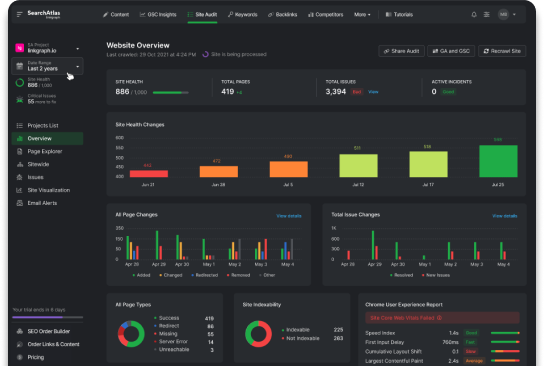

How to Track SEO Campaigns with GSC Insights | Search Atlas Tutorial
A prevalent challenge among SEO professionals and website owners is monitoring the outcomes of their SEO initiatives. Whether it’s a full-blown campaign or subtle tweaks, tracking is […]
A prevalent challenge among SEO professionals and website owners is monitoring the outcomes of their SEO initiatives. Whether it’s a full-blown campaign or subtle tweaks, tracking is crucial. Enter Search Atlas’s GSC Insights, your solution to this age-old problem.
Getting Started with GSC Insights:
With GSC Insights, monitoring your site’s performance is a breeze. Here’s a step-by-step guide to help you navigate:
Tracking Sitewide Changes:
- Open the GSC Insights tool.
- Navigate to the Page Performance report.
- Choose any page (the specific page doesn’t matter for sitewide events).
- Click on “Site Events.”
- Fill in the “Event Name” with a brief description of your campaign or change.
- Set the date of the change.
- Under “Event Affected,” choose “Sitewide.”
- Pick an icon and click “Add Event.”
- Click “Continue” to save the event.
- You’ll now see the event icon on the performance graph of the URL and other GSC reports, including Keyword Position History and Overall Rank Change.
Monitoring Individual URL Changes:
- Search for the specific URL slug in the page report.
- Select the page and click on “Site Events.”
- Click “Add Event.”
- Name the event, choose an icon, and set the date of the change.
- Ensure “This page” is selected under “Event Affected.”
- Click “Add Event” and then “Continue.”
- The event will now be visible on the individual page view, alongside any sitewide events.
Deleting a Site Event:
- Click the three dots next to the event.
- Select “Delete.”
Conclusion
With Search Atlas’s GSC Insights, you’re equipped to track the impact of your SEO campaigns effectively. This invaluable tool ensures you’re always informed, enabling you to strategize better and achieve higher rankings. Here’s to successful SEO endeavors!